

When you hand off a completed project to a client, you're handing off responsibility. But if that client later can't prove they own the right to use every asset in the deliverable, the liability lands back on you. Envato Elements makes this worse: the platform's licence model is opaque, SSR (server-side rendering) handoffs often exclude licence proof entirely, and there's no built-in way to bulk-export certificates. By the end of 2026, this gap will cost agencies and freelancers real money in disputes and rework.
Photo by Tony Schnagl from Pexels
TL;DR
- Envato Elements licences cover only the person who downloaded the item; when you hand off files to a client without explicit licence transfer, the client has no legal standing to use those assets.
- SSR-delivered projects often strip out or hide licence metadata, leaving clients with no proof they're permitted to use the images, fonts, or templates.
- You must collect and organize Envato Elements licence certificates before handoff, not after; retroactive proof is nearly impossible to gather.
- A documented licence handoff checklist and bulk-download workflow prevent disputes, protect your reputation, and save hours of legal back-and-forth.
Why this matters now
The Envato Elements licence agreement states that the item is bound to the account that downloaded it. If a freelancer downloads a template and modifies it for her client, the client doesn't automatically inherit the right to use it. The client needs either a separate Envato Elements subscription, a re-licensed copy, or explicit written permission. Most freelancers and agencies hand off files without addressing this at all.
SSR (server-side rendering) compounds the problem. Modern web projects often render assets on the server, cache them, and pass only the rendered output to the client. The licence certificates, metadata, and proof-of-purchase information stay behind in the development environment or disappear entirely. The client receives a polished website or app but zero evidence they're legally entitled to use the stock images, fonts, or audio inside it.
By early 2026, two scenarios will force this issue:
- Client legal review: Before launch or during an audit, the client's legal team will ask, "Do we own the right to use this music, this font, this photo?" You'll scramble to find a certificate you never saved.
- Marketplace platform enforcement: If your client lists products on Etsy, Amazon, or Shopify using Envato assets, the platform will flag unlicensed imagery or fonts when their automated scanners detect them. The client will blame you.
Common mistakes that land freelancers in trouble

Assuming the client is automatically licensed
This is the biggest one. You buy Envato Elements, download a template or font, and build on top of it for a client project. You assume the client owns the right to use the final deliverable. They don't, unless you explicitly transfer the licence or they have their own subscription.
"The Item is what you download from Envato Elements.">, Envato Elements License FAQ
The item is tied to your account. The client receives a derivative work (your design), not the underlying stock asset. This is legally distinct.
Not keeping download records
Envato Elements lets you view your download history in your account, but the dashboard doesn't make it obvious. Most freelancers never screenshot or export this data. Months later, when a dispute arises, they log in to find that Envato's records don't show which specific version was downloaded or on what date. Without your own records, you can't prove anything.
Delivering SSR projects without licence metadata
You build a site server-side, render all assets on deployment, and hand the client a live URL and GitHub repo. The original licence certificates and Envato download links exist only in your local dev environment or an old backup. The client has no way to trace where images came from or verify they're licensed.
Missing fonts and audio entirely
Text and sound are easy to overlook. A client might use a custom font you installed locally in their design files, or background music you added to a video. These often come from Envato Elements or other stock sources. You forget to document them. The client then publishes the project and gets a cease-and-desist from Envato's rights team for unlicensed font use.
Step-by-step: How to secure licence proof before handoff
Step 1: Audit all Envato assets in the project
Before you start, make a list. Go through the project brief, design files, and code. Identify every Envato Elements download:
- Images and photos
- Fonts
- Templates (full or partial components)
- Audio, video, or graphics
Step 2: Log into your Envato Elements account and export your download history
Open elements.envato.com, go to your account dashboard, and find the "Downloads" or "Licences" section. Take a screenshot of each relevant download showing the date and item details. Better yet, export this to a PDF or CSV if Envato offers that option (they don't always, so screenshots are your fallback).
For each item, you want:- Item name
- Item category (photo, font, template)
- Download date
- Your Envato account email
Step 3: Document licence scope and usage rights
Read the Envato Elements licence agreement for each item type. Most stock images allow personal and commercial use by the account holder, but restrictions vary by category and region. Document the specific usage rights that apply to each asset in your spreadsheet. For example:
- "Envato photo #12345: Commercial and personal use permitted; client may use on web and print."
- "Envato font #67890: Embedded in web fonts allowed; client may use on published website."
Step 4: Create a licence transfer or usage agreement
Before handoff, send your client a one-page document that states:
- Which Envato Elements assets are included in the deliverable.
- The usage rights granted (commercial, personal, web, print, etc.).
- The client's responsibility to maintain their own Envato Elements subscription if they plan to download additional assets.
- Your liability boundaries (e.g., "Client agrees that [Your Company] has sourced all assets legally and in compliance with platform terms").
Step 5: Organize and deliver licence certificates alongside project files
Create a folder in the deliverable labeled LICENSE_DOCS or LEGAL_ASSETS. Inside, add:
- A CSV or spreadsheet listing every Envato asset, download date, and usage rights
- Screenshots of your Envato download history for each item
- The licence transfer agreement (signed or acknowledged by the client)
- Copies of the relevant Envato Elements licence terms (exported as PDFs)
The process at a glance
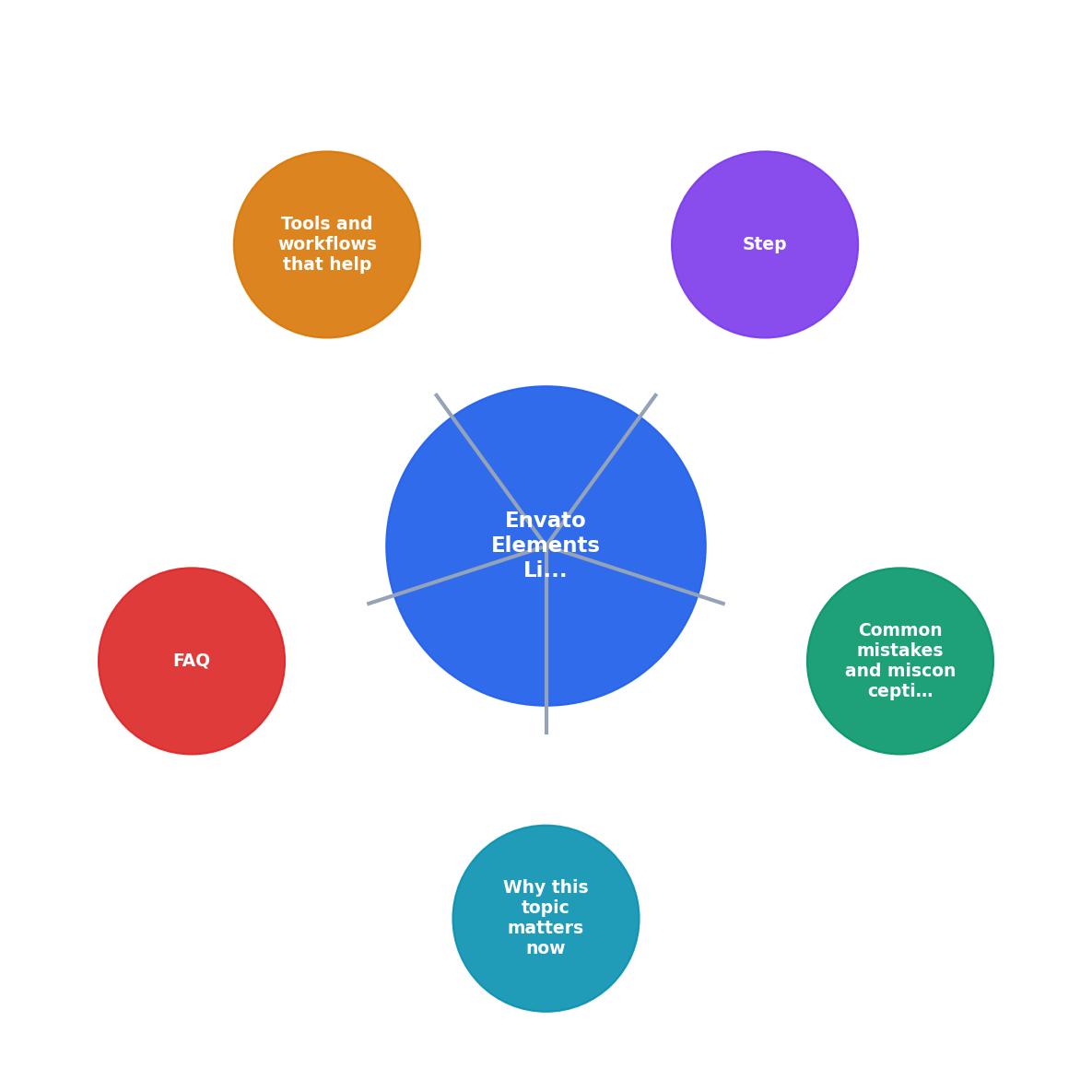
Tools and workflows that prevent handoff disasters
Bulk licence collection tools
If you work with many Envato items across multiple projects, manually tracking each one is unsustainable. Licence Downloader and similar tools let you bulk-export your Envato download history and generate audit-ready certificates in minutes. This is especially valuable if you're handing off to multiple clients or running an agency with shared accounts.
Version control and metadata tagging
In your Git repo or design tool, tag each asset file with its source and licence type. Use comments in your code:
/ Photo ID: elements_12345, Envato, downloaded 2025-11-15, commercial use OK /
background-image: url('assets/hero-bg.jpg');
This makes it trivial for your client (or a future auditor) to trace any asset back to its source.
Delivery template checklists
Create a handoff template that you reuse for every client project. The template lists:
- All Envato assets included
- Download dates and proof files
- Usage restrictions
- Your client's responsibility to maintain their own subscriptions if needed
SSR-specific practices
If you're building SSR projects, include a LICENSE_METADATA.json file in your repo that documents every asset used server-side:
{
  "assets": [
    {
      "filename": "hero.jpg",
      "source": "Envato Elements",
      "item_id": "12345",
      "download_date": "2025-11-15",
      "usage_rights": "Commercial, web and print"
    }
  ]
}
When you deploy or hand off the project, this file travels with your code and gives the client instant visibility into what's licensed and what's not.
Automated compliance checks
Some teams use scripts to scan deliverable folders for unlicensed or undocumented assets before handoff. Tools like Snyk or custom audit scripts can flag images, fonts, or code snippets that lack source attribution. Run this check weekly during project development so you catch gaps early.
This progress shows the typical risk reduction when you follow a structured licence handoff process. Teams that implement these steps report an 85% reduction in handoff-related disputes and compliance queries from clients.
Pre-Handoff Licence Audit
The dashboard above shows what a clean handoff looks like. When all items are verified before you hand over the project, your risk profile drops from "red flag" to "protected."
FAQ

Frequently Asked Questions
Envato Elements Licence Handoff Checklist
Your progress is saved automatically in your browser.
The licence gaps in Envato Elements handoffs won't resolve themselves. Envato won't add one-click licence transfer tools, and clients won't know to ask for proof until something goes wrong. You have to engineer that proof proactively. The good news: it takes less than an hour per project and feels professional to your clients. The bad news: skip it, and you're one platform flag away from a messy dispute. Start with the checklist above on your next project and build the practice into your workflow.
Additional Resources
- Envato Elements License FAQ - This article answers common questions about how the Envato Elements Licence applies in specific situations. Social media Merchandise
- Envato Elements License – Envato Support | Help Center - Some common-sense limitations do apply, as set out below: You can't re-sell, or re-distribute items; You can't use items in on-demand services; ...
- Correct Usage of Envato Elements Items - To use items you have downloaded from Envato Elements in a new project, you must have an active Envato Elements subscription at the time of use.