

A client emails you asking for proof that the hero image on their website was properly licensed. You search through months of downloads, invoices, and account dashboards. Twenty minutes later, you find a receipt, but it doesn't clearly show the licence terms. This shouldn't be hard. The right folder structure and naming system saves you from these moments entirely, keeping every licence accessible and defensible when you need it most.
Photo by Bia Limova from Pexels
TL;DR
- A clean folder structure names files by asset ID, date, and licence type so you can instantly verify compliance.
- Use consistent naming conventions (SSXXX-YYYY-MM-DD format) across all downloads to make audits automatic.
- Separate licence certificates from working files; store both in a central location with version control.
- Automate downloads and archival with tools like Licence Downloader to remove manual errors and save hours monthly.
An audit-ready folder structure isn't glamorous, but it's the difference between a calm response and a panic when a lawyer asks you to prove your image rights. When you work with Shutterstock Enterprise, or manage stock assets for clients, the volume of images grows fast. Manual organization becomes a liability. The solution is simple: standardize how you name, store, and retrieve licence proof before you need it.
Why folder structure matters now
The moment you download your first Shutterstock image, the clock starts. If you're a freelancer delivering assets to clients, you carry the legal responsibility for proving those images are licensed. If you work for an agency managing multiple brands and accounts, dozens of people might access the same assets, yet no one person knows where the licence lives.
Folder chaos isn't just inconvenient. It's a compliance risk. When a client's legal team (or a platform's legal team, or a marketplace moderator) asks for proof, you have hours to respond, not days. If your archive is scattered across email attachments, old hard drives, and three different cloud services, you won't find it in time.
Build the right structure now, and audits become routine. You open a folder, find the certificate in seconds, and move on.
Common mistakes and misconceptions
Most people store downloads in a single "Shutterstock" folder with generic filenames like "image.jpg" or "design_final.zip". This works until you need to find a specific image or prove its licence terms. Without metadata in the filename, you're forced to open every file to remember what it is.
Others assume the Shutterstock platform itself is the archive. The dashboard is convenient for active work, but accounts close, subscriptions change, and download history disappears after a set period. Relying on platform history alone means losing proof when you need it most.
A third mistake: mixing working files with licence certificates. You might download a PSD with layers, then lose track of which version is the licensed original. Edits and file versions muddy the audit trail.

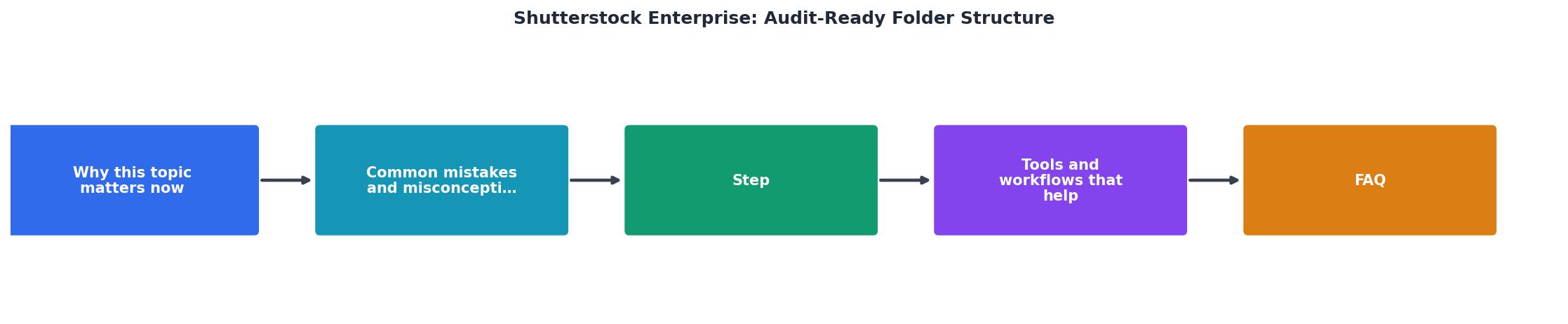
Step-by-step approach
1. Choose a naming convention and stick to it
The best naming system captures the essential facts: asset ID, download date, and licence type. A simple format is SSXXX-YYYY-MM-DD-[licence type]. For example:
SS12345678-2026-01-15-Standard.jpg(Shutterstock ID, date, standard licence)SS87654321-2026-01-15-Extended.jpg(Extended licence for full usage rights)SS11111111-2026-02-01-Editorial.jpg(Editorial use only)
This format takes seconds to apply and saves hours during an audit.
2. Create a master folder hierarchy
Structure your archive in layers:
/Licences
  /2026
    /Q1
      /January
        /Shutterstock
          SS12345678-2026-01-15-Standard.jpg
          SS12345678-2026-01-15-Standard_certificate.pdf
      /February
    /Q2
  /2025
/Working-Files
  /Client-A
    /Project-1
  /Client-B
/Archive-Old
The /Licences section is your permanent record, never edited, never deleted. Store the actual asset file and its certificate together. The /Working-Files section holds edits, comps, and drafts. The /Archive-Old folder contains downloads from cancelled subscriptions or old accounts, still accessible but clearly separated.
This layering means auditors see a clean, year-organized structure. It's also scalable: as you add more assets, the hierarchy grows naturally by date, not chaos.
3. Export and store licence certificates separately
Every Shutterstock download comes with, or lets you access, a licence certificate. This document is your proof. Don't bury it in email or assume it's on the platform. Save it alongside the asset.
When you download from Shutterstock Enterprise, the certificate includes:- Your account name and download date
- The asset ID and description
- The licence type and permitted uses
- Restrictions or watermark requirements
"The article covers steps on how to run a File Audit Report, what each parameter does, and what's included in the report.">, File Audit Report
Name the certificate the same as the asset, with a _certificate suffix: SS12345678-2026-01-15-Standard_certificate.pdf. This ensures the certificate and the file stay linked visually in the folder.
4. Use consistent metadata tagging
If you're working in a cloud service like Google Drive or Dropbox, add tags or custom properties to files:license-type: standardaccount: Shutterstock-Primaryclient: Client-Aproject: Website-Redesign
5. Set a regular audit schedule
Even with a good structure, things drift. Set a monthly or quarterly reminder to check your archive. Verify that new downloads follow the naming convention. Confirm that certificates are saved alongside assets.
For agencies or teams, assign one person this task. It takes an hour per month and prevents months of catch-up later.
Tools and workflows that help
Automation removes the burden
Manual naming and filing is error-prone. Tools like Licence Downloader automate the download and archive process. Instead of downloading one image at a time and renaming it, you batch-export your Shutterstock assets with pre-set naming rules, certificates included. The tool handles the folder structure. You get an organized archive in minutes.
This shifts your effort from manual filing to strategic oversight. You spot-check the archive weekly, but the system maintains itself.
Cloud backup for redundancy
Never keep your licence archive on a single hard drive. Cloud services like Google Drive, OneDrive, or Dropbox with versioning protect against hardware failure and accidental deletion. Even better, use a service designed for archival, like Backblaze or Wasabi, for long-term, compliance-grade storage.
Spreadsheet index (optional but effective)
Some teams keep a simple CSV or Google Sheet that indexes all assets:
| Asset ID | Filename | Download Date | Licence Type | Client | Project | Certificate |
|---|---|---|---|---|---|---|
| 12345678 | SS12345678-2026-01-15-Standard.jpg | 2026-01-15 | Standard | Client-A | Website | Yes |
| 87654321 | SS87654321-2026-01-15-Extended.jpg | 2026-01-15 | Extended | Client-B | Branding | Yes |
Example: Freelancer's Licence Archive
The dashboard above shows what a well-organized archive looks like for a freelancer. Every asset has a certificate. Every file is named consistently. The result: any audit request can be answered in minutes, not days.

Audit-Ready Archive Checklist
Your progress is saved automatically in your browser.
FAQ
Frequently Asked Questions
/Archive-Old folder if you want them out of active view, but never delete.The foundation of an audit-ready licence archive is boring infrastructure: folders, filenames, and discipline. It's not creative or exciting. But the peace of mind it brings is real, and the hours it saves during an audit or compliance check are tangible. Start with the naming convention and folder structure today. If you're managing dozens of assets, add automation tomorrow. Either way, you'll never panic over licence proof again.
Additional Resources
- Audit Readiness images - Find 2121 Audit Readiness stock images in HD and millions of other royalty-free stock photos, 3D objects, illustrations and vectors in the Shutterstock ...
- Enterprise End-to-end Creative Partner - Shutterstock Enterprise houses collections of high-quality, authentic, and personalized content to help you power more marketing campaigns.
- File Audit Report - Folders: The user may enter folder names (e.g., /Shared/Marketing) or choose a folder by clicking selected folders and navigating the folder structure.