Licence proof playbook #14: Canva Pro proof export
When a client asks you to prove that every image in a design is licensed, Canva's export tools should save you hours. Instead, many creators find themselves digging through their design history, screenshots, and half-remembered asset selections. The good news: Canva Pro gives you the data you need. The hard part is knowing where to find it and how to organize it so a legal team can actually use it.

When a client asks you to prove that every image in a design is licensed, Canva's export tools should save you hours. Instead, many creators find themselves digging through their design history, screenshots, and half-remembered asset selections. The good news: Canva Pro gives you the data you need. The hard part is knowing where to find it and how to organize it so a legal team can actually use it.
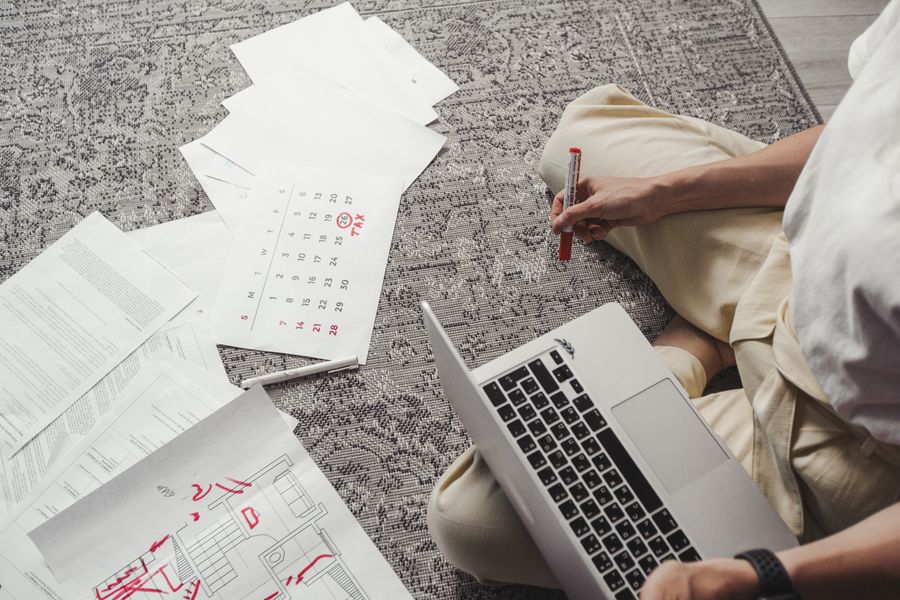
Photo by Mikhail Nilov from Pexels
TL;DR:- Canva Pro designs include metadata about stock images, fonts, and elements you used, but you must export this data deliberately.
- Use Canva's built-in file downloads (PDF with attribution, PNG/SVG exports) to capture source information.
- For teams and agencies, bulk-export your design library regularly and organize by project or client to build an audit trail.
- Cross-reference Canva's Content License Agreement to understand which content types (Education, Branded, Pro, Free) allow commercial or resale use.
- Store exports centrally so you can quickly prove asset licensing when disputes arise.
Why Canva licence proof matters now
Canva's library is massive, over 100 million design assets. That scale makes it tempting to assume everything in Canva is safe to use. It isn't. Canva's own terms distinguish between free content, Pro content (for Canva Pro subscribers), Branded content, and Education-only content. When you license an image through Canva, you're buying a specific usage right, not the image itself. If your client later uses that design in a different context, say, for print packaging after you delivered web mockups, you may have stepped outside the original licence terms.
Keeping licence proof means you can point back to what you actually licensed and when. It protects you from disputes, client confusion, and platform takedowns. It also makes it much easier to hand off work to other designers or agencies without losing the thread of which assets are safe to reuse.
Common mistakes with Canva exports
Most designers who use Canva don't think about licence proof until something goes wrong. By then, the design is weeks or months old, the source images are buried in Canva's history, and the original context is gone. Here are the traps:
- Not keeping the original design file. Canva designs live in the cloud, but you should download and archive them locally, especially for client work. If Canva removes an asset, you lose the record.
- Exporting only the final image. A PNG or JPG contains no metadata about where elements came from. You need the design file or a separate attribution document.
- Mixing free and Pro content. Free Canva content and Pro content have different licence terms. If you use free content in a commercial design without realizing it, you may violate the terms.
- Assuming PDFs are enough. Exporting a PDF with attribution is helpful, but it doesn't capture every asset detail (version, licence tier, exact usage terms).
- Not documenting the export date. Licence terms and asset availability change. A design you created in 2024 may have different licensing than the same design exported today.

Step-by-step Canva Pro export process
1. Open the design and check asset types
Before you export, take 30 seconds to scan your design. Look at the layers panel or select major elements and note their source:
- Stock images: These come from Canva's partner libraries (Unsplash, Pexels, Pixabay, Shutterstock partner content, and Canva's own curated collection).
- Pro Elements: Vectors, icons, and illustrations labeled "Pro", available only to Canva Pro subscribers.
- Free Elements: Graphics available to all Canva users.
- Branded elements: Logos or templates tied to specific brand partnerships.
- Fonts: Some fonts are free, others Pro-only.
2. Download the design file in multiple formats
Canva lets you export in several formats. Each serves a different purpose:
- Canva format (.canva): The native Canva file. Keeps layers, text, and asset links intact. Download this as your master archive. Later, you can re-open it to verify asset sources or re-export.
- PDF: Best for print or client review. Canva can include attribution info in PDF exports.
- PNG or JPG: Flat image export. Use this for web delivery, social media, or quick previews.
- SVG: If your design uses vector elements, SVG preserves scalability and layers (on certain designs).
- Open your Canva design.
- Click the "Download" button (top right).
- Select your desired file type.
- Choose additional options:
- If exporting to PDF, toggle "Include attribution information" ON. This adds a footer listing the sources of Canva assets.
- If exporting PNG/JPG, Canva gives you quality and transparency options.
- Download and save with a clear filename:
ProjectName_Client_YourName_Date.canvaand a copy asProjectName_Client_YourName_Date.pdf.
3. Review and document asset sources
Open your downloaded Canva file again and review each asset. For stock images or major elements, hover over them to see source info. Canva often shows:
- The creator or photographer name.
- The original library (Unsplash, Pexels, Pixabay, Shutterstock).
- Whether it's Pro or free content.
| Asset | Source | Type | Licence Notes | Date Used |
|---|---|---|---|---|
| Hero image (sunset) | Unsplash / John Doe | Free | CC0, free commercial use | 2025-09-01 |
| Icon pack | Canva Pro | Pro | Canva Pro licence | 2025-09-01 |
| Font (Display) | Canva | Pro | Canva Pro font licence | 2025-09-01 |
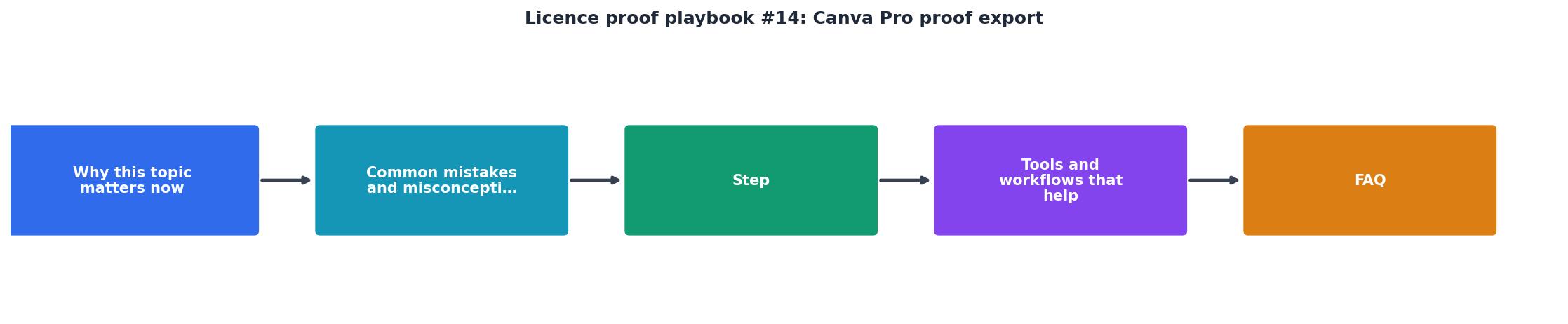
4. Use the process diagram to stay on track
5. Store exports in a central location
Don't scatter design files across email, cloud drives, and external drives. Use one system:
- For solopreneurs: A single Google Drive or Dropbox folder named "Designs_Archive" with subfolders by client or year.
- For agencies: A shared server or project management tool (Monday, Asana, Notion) where each project links to its design files and licence documentation.
- Include: The Canva file, the PDF with attribution, a screenshot, and your asset spreadsheet. Zip them if needed.
"The Content categories, from most to least restrictive, are: Education Content, Branded Content, Pro Content, and Free Content.">, Canva's Content License Agreement
Tools and workflows that help
Automate with bulk-download services
If you're designing dozens of projects per month, manual downloads become tedious. That's where tools like Licence Downloader fit in. While Licence Downloader primarily handles stock platforms like Freepik and Shutterstock, the principle is the same: bulk-export, organize, and archive in one place.
For Canva specifically, there is no built-in bulk-export tool, so you'll need to either:
- Download each design manually as described above (best for small teams or occasional use).
- Use Canva's API (if you're a developer) to programmatically pull design metadata and asset info.
- Build a simple checklist and batch-download weekly or monthly.
Create a reusable checklist
Many designers repeat the same 3-5 designs for different clients (e.g., social media templates, letterhead). Export and store the master once, then create a "licence reference sheet" you can reuse.
Your Weekly Licence Export Workflow
This card shows the exact five-step workflow you should repeat each time you finish a design. By batching this process weekly, say, every Friday afternoon, you spend 30 minutes and stay ahead of any compliance gaps.
For agencies: set up a project template
If you're an agency managing multiple designers and clients, create a Notion or Asana template for every project that includes:
- Design file links (Canva URL + exported backup).
- Asset licence spreadsheet.
- Client name, project scope, usage rights (web, print, social, etc.).
- Approval date and responsible designer.
- Renewal/expiry notes if assets have time-limited licences.
Most agencies start at 10-20% of designs having full documentation. By implementing this template, you can reach 75% coverage within a quarter. The final 25% are usually legacy or one-off projects where detailed records no longer matter.
FAQ
Frequently Asked Questions
Building your Canva licence archive right now
The best time to start keeping licence proof was when you created your first Canva design. The second-best time is today. Take 20 minutes and:
- Go through your last 5-10 completed designs in Canva.
- Download each one as a .canva file and PDF with attribution.
- Create a simple spreadsheet listing the major assets and sources.
- Move everything to a single folder on your drive or cloud service.
Canva Licence Export Checklist
Your progress is saved automatically in your browser.
The difference between a freelancer who sleeps soundly and one who panics at a client's legal question often comes down to this one habit: keeping proof. Canva Pro gives you everything you need. The only missing piece is you actually doing it.
Additional Resources
- Canva's Content License Agreement - A license is issued to you when you Export a Canva Design, for each piece of Content contained in your Design. Free Content licenses are issued at no cost.
- Canva's licensing explained - Our Free and Pro Content licenses cover all of the content we offer (except for Popular Music!) from photos, icons and illustrations, to videos, audio, fonts ...
- Canva Legal Support RESPONDS About Copyright For ... - Proof that Canva licenses your design downloads. A license granted by Canva is not a copyright. It's a license, or rather, permission to use ...
Need to Download Your Licences?
Save hours of manual work. We download all your stock photo licence certificates for you.
Get Started“Thanks to LicenceDownloader.com, I was able to download more than 1,000 Freepik licences and receive them all at once via ZIP.”
Marlon Mainardy