Shutterstock audit folder template
Stock images power modern creative work, but without proof of licence, one copyright claim can derail a project and damage your reputation. A properly organized Shutterstock audit folder keeps every licence certificate, invoice, and image metadata in one searchable place so you're ready when a client, platform, or legal team asks for proof. This guide walks you through building a Shutterstock audit folder that protects you and scales with your workload.


Stock images power modern creative work, but without proof of licence, one copyright claim can derail a project and damage your reputation. A properly organized Shutterstock audit folder keeps every licence certificate, invoice, and image metadata in one searchable place so you're ready when a client, platform, or legal team asks for proof. This guide walks you through building a Shutterstock audit folder that protects you and scales with your workload.
Photo by Mark Youso from Pexels
TL;DR:- A Shutterstock audit folder is a centralized archive of licence certificates, invoices, and image metadata for every asset you use, organized by project or client.
- Organize folders by client/project, export Shutterstock licence data monthly, and store receipts alongside each image's metadata.
- Use a naming convention (e.g.,
YYYY-MM-DD_ImageID_Description) to keep files searchable and audit-ready. - Automate downloads where possible to save hours of manual work and reduce errors.
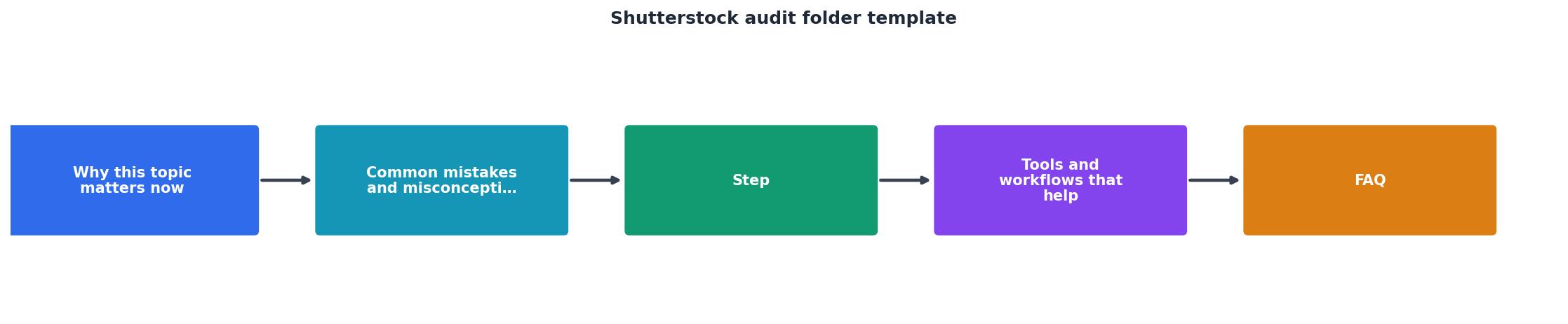
Why Shutterstock audit folders matter now
Copyright disputes happen faster than most people expect. A client's lawyer requests licence proof within weeks of a project launch, a marketplace flags a suspicious image, or a copyright troll targets your portfolio. Without organized records, you're scrambling to recover screenshots, invoices, and download confirmations from months of email and Shutterstock account history.
A proper audit folder solves this before the problem occurs. It acts as your proof of purchase and legal shield, evidence that you obtained a valid licence from Shutterstock on a specific date for a specific image. Courts, platforms, and legal teams recognize organized licence archives as credible. Disorganized records, screenshots, or "I think I bought it" claims don't.
The second reason is operational. Freelancers and agencies often work across multiple stock platforms, multiple client projects, and multiple team members. Without a central audit folder, licence information is scattered across Shutterstock dashboards, email receipts, local downloads, and team members' hard drives. A client question becomes a 30-minute scavenger hunt. A new hire doesn't know which images are safe to reuse. A compliance audit becomes a nightmare.
Building an audit folder takes a few hours upfront but saves tens of hours later, and eliminates the anxiety of getting caught without proof.
Common mistakes that cost time and credibility

The most common mistake is storing nothing at all. Many creators download images from Shutterstock and assume the licence is "with the image." When they need proof, they try to log back into Shutterstock, hunt for the download confirmation, or reconstruct the purchase months later. If your account is inactive or Shutterstock's database is archived, that proof disappears.
A second mistake is hoarding everything without organization. Creators export every licence certificate, invoice, and scrap of data into a single folder called "Shutterstock" or "Licences." When they need a specific licence within minutes, they're clicking through hundreds of PDFs with generic names like "certificate.pdf" and "receipt_2024.pdf." Organization breaks down instantly.
The third mistake is storing only the image file itself, not the licence metadata. You download a JPG from Shutterstock, store it in your project folder, and forget the licence file. Months later, you need to prove that specific image was licensed, and you have no record of the Shutterstock licence ID, the purchase date, or the licence type (standard vs. extended).
The fourth mistake is not documenting which images are embedded where. You license an image for one client project, later a different team member or client asks if they can reuse it, and you don't have a trail of which projects use which images. This creates accidental licence violations, reusing a single-project image across multiple clients.
Finally, many teams never sync their audit folder. One person downloads a licence, stores it locally, and doesn't share it with the team. When a client emails and asks for proof, the wrong person gets asked. Or a freelancer leaves, and the archive goes with them. Without a shared, version-controlled audit folder, knowledge walks out the door.
Step-by-step approach to building your folder

Step 1: Choose your folder structure
Decide whether to organize by client, project, date, or a combination. For freelancers working with multiple clients, a client-first structure makes sense:
Shutterstock_Audit/
├── Client_A/
│   ├── Project_Logo_Rebrand_2024/
│   │   ├── Licences/
│   │   ├── Images/
│   │   └── Metadata.csv
│   └── Project_Social_Assets_2024/
├── Client_B/
└── Internal_Projects/
For agencies managing hundreds of images across many projects, date-first organization is cleaner:
Shutterstock_Audit/
├── 2024_Q1/
│   ├── Jan/
│   ├── Feb/
│   └── Mar/
├── 2024_Q2/
For solo creators with fewer assets, a flat structure with strong file naming is enough:
Shutterstock_Audit/
├── YYYY-MM-DD_ImageID_ClientProject_Description.pdf
├── YYYY-MM-DD_ImageID_ClientProject_Description_image.jpg
└── LICENSE_LOG.csv
Pick the structure that matches how your team thinks. You'll use it constantly, so intuitive navigation matters more than perfect organization.
Step 2: Export Shutterstock licence data
Log into your Shutterstock account and navigate to Downloads or Licenses. Most accounts show a download history with image ID, title, download date, and licence type. Export this as a CSV or PDF. This is your baseline record.
For each image, note:- Shutterstock Image ID (unique identifier, usually 6-9 digits)
- Title (what Shutterstock calls it)
- Download date (when you licensed it)
- Licence type (Standard, Enhanced, or Plan)
- Project/Client (where it's being used)
- Expiry or perpetual (does the licence expire?)
Step 3: Create a naming convention
Files in your audit folder must be instantly searchable and meaningful. A good naming pattern is:
YYYY-MM-DD_[ShutterstockID]_[ClientProject]_[Brief Description]
2024-03-15_47592831_TechCorp_HeroImage_SaasDashboard.jpg2024-03-15_47592831_TechCorp_HeroImage_License.pdf2024-03-15_47592831_TechCorp_HeroImage_Invoice.pdf
- Date sorts chronologically, you know when the licence was acquired.
- Shutterstock ID ensures uniqueness, multiple versions of the same image don't collide.
- Client and description provide context, you can search for "TechCorp" and see all assets for that client.
Step 4: Pair every image with its licence certificate
For each image in your audit folder, store three files:- The image file itself (JPG, PNG, etc.)
- The licence certificate (PDF from Shutterstock, showing image ID, licence type, and download date)
- The invoice or receipt (PDF showing purchase details and price)
Store all three in the same subfolder or with matching filenames. This way, when a client asks for proof of licence for image X, you can grab all three files in seconds.
Tools and workflows that scale

Manual export workflow
The simplest approach is monthly exports. Set a calendar reminder for the first of each month. Log into Shutterstock, export your downloads and licence list, save them to your audit folder, and rename files according to your convention. This takes 30-60 minutes per month and keeps records current.
Monthly checklist:- Log into Shutterstock account
- Navigate to Downloads / Licenses
- Export as CSV
- Download individual licence certificates for new images
- Rename and store in audit folder
- Update your master index
Spreadsheet-based tracking
Use a master CSV or Google Sheet to track every Shutterstock image you use:
| Date | Shutterstock ID | Title | Client | Project | Licence Type | File Path | Notes |
|---|---|---|---|---|---|---|---|
| 2024-03-15 | 47592831 | Modern office desk | TechCorp | Website Redesign | Standard | /TechCorp/Website_Redesign/Images/47592831_office.jpg | Hero image, homepage |
| 2024-03-15 | 47592832 | Laptop keyboard | TechCorp | Website Redesign | Standard | /TechCorp/Website_Redesign/Images/47592832_keyboard.jpg | Product section |
Automated bulk download
For agencies handling hundreds of images monthly, manual work is unrealistic. That's where tools like Licence Downloader come in. They automate the process of pulling licence data from Shutterstock (and other platforms) and organizing it into audit-ready folders.
Instead of logging in each month and clicking through dozens of pages, you authorize the tool once, and it pulls your entire licence history into a centralized archive with consistent naming and folder structure. It also tracks which images are used on which projects and flags reuse violations.
Cloud storage and version control
Store your audit folder in a shared cloud service, Google Drive, Dropbox, OneDrive, or Git. This ensures:- Team access, any team member can quickly find licence proof.
- Backup redundancy, if your local drive fails, the archive survives.
- Version history, you can recover deleted files or track changes over time.
- Offline access, most cloud services work offline and sync when you reconnect.
Process diagram for implementation
Interactive audit folder dashboard
Understanding how your licence archive should look in practice helps with implementation. Here's an example dashboard showing how a typical freelancer or small team might organize and track their Shutterstock licences:
├── LICENSE_INDEX.csv
├── Client_A/
│ ├── Project_Branding/
│ │ ├── Licences/ (8 PDFs)
│ │ ├── Images/ (8 JPGs)
│ │ └── Metadata.csv
│ └── Project_Social_Ads/
│ ├── Licences/ (12 PDFs)
│ ├── Images/ (12 JPGs)
│ └── Metadata.csv
├── Client_B/ (similar structure)
└── 2024_Q1_Exports/ (raw CSVs)
This example shows a working audit folder for a freelancer managing 47 images across five clients. Every image is paired with its licence certificate and invoice, organized by client and project, with a central index CSV for searching. This structure ensures that any client question about image licensing can be answered in minutes, not hours.
Implementation checklist
Shutterstock Audit Folder Setup Checklist
Your progress is saved automatically in your browser.
Key points to remember
FAQ
Frequently Asked Questions
Next steps
Setting up a Shutterstock audit folder takes a few hours upfront but protects you and your clients for years. Start by exporting your download history today, pick a folder structure that fits your workflow, and begin organizing as you download new images.
If managing hundreds of images across multiple team members or platforms feels overwhelming, consider using a tool like Licence Downloader to automate the heavy lifting. These tools can pull licence data from Shutterstock (and Freepik, Adobe Stock, Envato, iStock, Canva, and other platforms) and organize everything audit-ready for you, cutting manual work from hours to minutes.
Additional Resources
- Audit file folder flat color vector illustration template design - Futuristic digital audit interface with glowing checklists, blue theme, data bars, and global network background, symbolizing compliance, ...
- Audit Checklist images - Find 39910 Audit Checklist stock images in HD and millions of other royalty-free stock photos, 3D objects, illustrations and vectors in the Shutterstock ...
- Audit Template images - Find 18160 Audit Template stock images in HD and millions of other royalty-free stock photos, 3D objects, illustrations and vectors in the Shutterstock ...
Need to Download Your Licences?
Save hours of manual work. We download all your stock photo licence certificates for you.
Get Started“Thanks to LicenceDownloader.com, I was able to download more than 1,000 Freepik licences and receive them all at once via ZIP.”
Marlon Mainardy